Clean up 5–50 product photos in one catalog workflow.
Bulk helps sellers upload a batch, approve one visual direction, review each result, and download the product images that are ready to use.

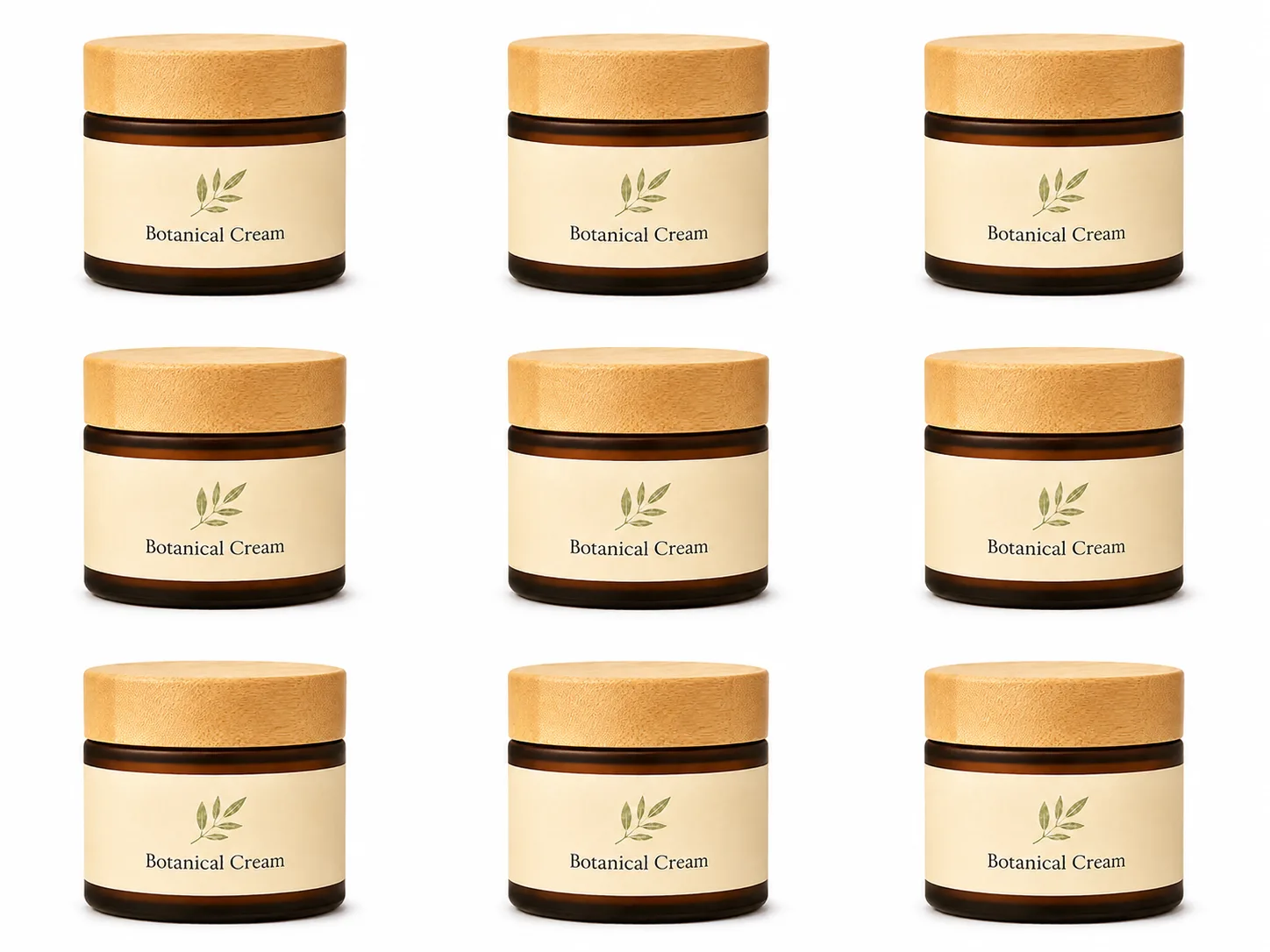
Bulk basics
What Bulk does
Bulk helps sellers process a catalog batch instead of fixing product photos one at a time.
Bulk is for catalog work
Bulk is built for sellers who need more than one product photo cleaned up. Instead of repeating the same workflow one image at a time, you can upload a batch, approve a visual direction, review the results, and download the images that are ready.
Bulk helps with
- Product catalog cleanup
- Marketplace listing refreshes
- Shopify collection updates
- Supplier photo cleanup
- Seasonal product launches
- Agency client batches
- Consistent ecommerce presentation
Basic Bulk workflow
Upload 5–50 product photos.
Add the product images you want to process together.
Choose the workflow.
Pick the template or output path that fits the job.
Approve one look.
Use one result as the visual direction for the batch.
Run the batch.
Process the photos together instead of one by one.
Review the results.
Keep the images that work and use Try again where needed.
Download selected.
Export only the images you want to use.
Think batch, not shortcut
Bulk works best when the photos belong to the same catalog, collection, client, or product update.
Bulk batch size
Bulk is built for batches of 5–50 product photos.
Upload 5–50 product photos at a time
Bulk is designed for catalog batches. That means product groups, store updates, marketplace refreshes, seasonal launches, and supplier photo cleanup.
Batch limits
- Minimum Bulk batch: 5 photos.
- Maximum Bulk batch: 50 photos.
- For a single image, use the regular Lift workflow.
- For more than 50 photos, start another batch.
Why 5–50?
This range keeps Bulk focused on real catalog work while keeping the review process manageable. A batch should be large enough to benefit from consistency, but small enough to review carefully.
App messages
Reference-locked consistency
Approve one look first, then use that direction across the batch.
Consistency starts with one approved look
Bulk works best when the batch has a clear visual direction. Instead of guessing across every photo, approve one strong result first. That reference look helps the rest of the batch feel like one catalog.
Reference workflow
Before batch
Product photos may have different lighting, backgrounds, crops, and quality.

Approved reference
Choose one result that shows the look you want.
Consistent output
Use the approved direction across the rest of the batch.
How to use a reference
Pick a strong source photo.
Start with a product image that clearly shows the item.
Generate a result.
Create the first version before running the full batch.
Approve the look.
Confirm the crop, background, lighting, and product presentation.
Run the batch.
Use the approved direction for the remaining photos.
Review each result.
Keep, try again, or leave out images that are not ready.
The reference is about style, not product content
The reference look guides the visual direction. Each product still needs to be reviewed for its own label, shape, packaging, and details.
How to prepare photos for Bulk
Better source photos make Bulk easier to review and more consistent.
A batch is only as strong as the photos inside it
Bulk can help clean up a catalog, but the source photos still matter. The best batches have clear product images with enough detail to preserve labels, shapes, and packaging.
Before you upload a batch
Group similar jobs together.
Keep marketplace-ready photos, transparent cutouts, and lifestyle needs in separate batches.
Remove unusable shots.
Do not include images where the product is blocked, cropped off, or too blurry to review.
Check labels and packaging.
Make sure important product details are visible.
Avoid heavy glare.
Strong reflections can make labels and edges harder to preserve.
Use consistent angles where possible.
Similar source angles usually create a more consistent batch.
Name files clearly.
Clear filenames make it easier to review and organize the final download.
Bulk source photo do / don’t
Do
- Use sharp product photos.
- Upload products from the same catalog or update.
- Keep the full product visible.
- Use similar source angles when possible.
- Review the batch before running it.
Don't
- Mix unrelated image goals in one batch.
- Include heavily blurred screenshots.
- Include products blocked by props or hands.
- Upload photos where the label is unreadable.
- Run a batch without reviewing the first approved look.
RenderLift tip
If a few source photos are much worse than the rest, leave them out and retake them. One weak photo can slow down review for the whole batch.
Bulk Lift preview
Bulk shows the estimated Lift cost before the batch runs.
Review the cost before you run the batch
Bulk should not surprise you. Before a batch starts, review the number of photos, selected workflow, output size, and estimated Lift use.
Example Bulk previews
Standard product batch
- 24 photos selected
- Marketplace Ready
- 1K or 2K output
- 24 photos × 1 Lift = 24 Lifts
Higher-resolution batch
- 50 photos selected
- Product cleanup workflow
- 4K output
- 50 photos × 2 Lifts = 100 Lifts
Cost preview should show
- Number of photos selected.
- Workflow or template selected.
- Output size selected.
- Estimated Lifts needed.
- Current Lift balance.
- Whether more Lifts are needed before starting.
Start only when the batch is ready
Review the estimated cost and the selected photos before starting. Bulk is designed for batches of 5–50 product photos, so use the regular Lift workflow for a single image.
Review, Keep, and Try again
Bulk review lets users keep strong results and create another attempt where needed.
Bulk is not finished until you review it
A completed batch is a review queue. Look through each result, keep what works, use Try again where needed, and leave out anything that is not ready for download.
Review actions
- Keep marks a result as approved for now.
- Try again creates a fresh attempt when the result is close but not right.
- Selected results are included in the next download.
- Downloaded results can be downloaded again without using additional Lifts.
- A completed result is not automatically published anywhere.
Review flow
Open the batch review.
Start with the images that still need action.
Keep strong results.
Mark results that are ready or close enough to use.
Use Try again where needed.
Create another attempt when a result completes but you want a different version.
Select for download.
Choose the kept results you want to export.
Download selected.
Export the approved set when ready.
Review one image at a time
Bulk saves time, but the final decision still belongs to the seller. Check product shape, label details, edge quality, color, and crop before downloading.
Download selected results
Bulk users should be able to download only the results they approve.
Export the images you actually want
Bulk review should not force every result into the final download. Keep the images that work, select the ones you want now, and download only those results.
Download behavior
- Keep does not have to mean download immediately.
- Selected images are included in the next download.
- Download selected exports the current selected set.
- Download all kept can export all approved results.
- Re-downloading a finalized image does not use additional Lifts.
- Trying again after finalizing creates a new attempt and may use more Lifts.
Download workflow
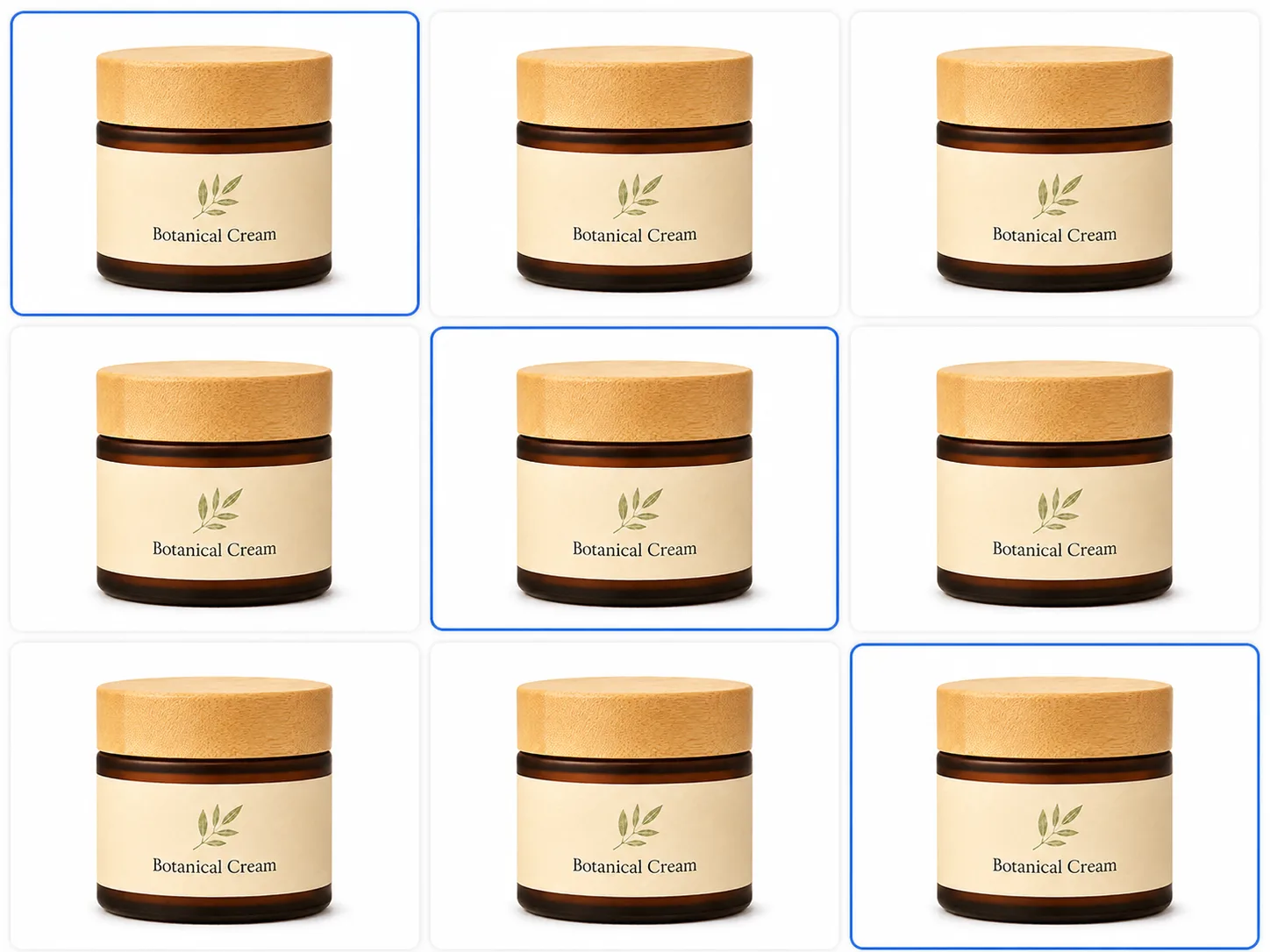
Review grid
See which images are kept, selected, or need another attempt.
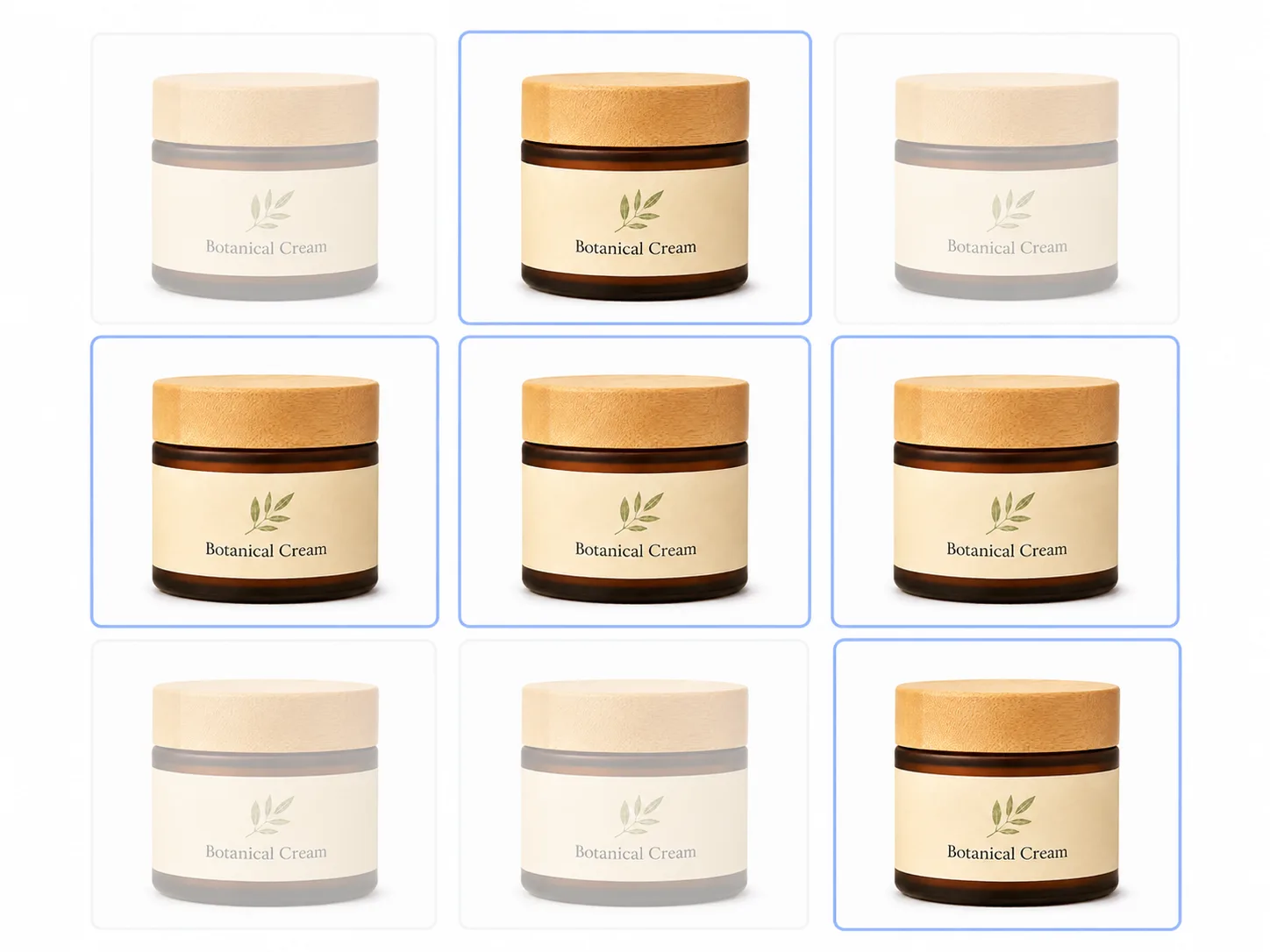
Selected results
Choose the images that should be included in the export.
Keep your download clean
Exporting selected results helps sellers avoid mixing approved images with images that still need review.
Where Bulk works well
Bulk helps sellers refresh product images across marketplaces and storefronts.
Bulk is useful wherever catalogs need consistency
Different platforms have different image requirements, but the need for clean, consistent product photos is common across ecommerce.
Bulk use cases

Amazon
Refresh groups of listing images and review final results against current marketplace requirements.

Shopify
Create a more consistent product grid for collections, product pages, and store updates.

Etsy
Clean up small-batch or handmade product photos while keeping the catalog visually consistent.

Walmart
Prepare product-first images for marketplace catalog updates.

eBay
Improve resale, catalog, or inventory photos in batches.

WooCommerce
Standardize product images for your own store, category pages, and product grids.
Review platform rules before publishing
Bulk helps create cleaner product images, but each platform and category may have its own image rules. Review final images before publishing.
When to use Bulk
Use Bulk when several product photos need the same workflow and a consistent look.
Use Bulk when the work repeats
Bulk is useful when you would otherwise repeat the same product photo workflow many times. It helps when the images belong together and need a consistent result.
Bulk is a good fit when
- You have 5–50 product photos.
- You are cleaning up a product catalog.
- You are updating marketplace listings.
- You are launching or refreshing a Shopify collection.
- You are processing supplier photos.
- You need the same visual direction across a batch.
- You want to review and download selected results.
- You are preparing a seasonal or recurring catalog update.
Common Bulk jobs
Catalog refresh
Turn inconsistent product photos into a cleaner set.
Store launch
Prepare many product images before publishing a new store.
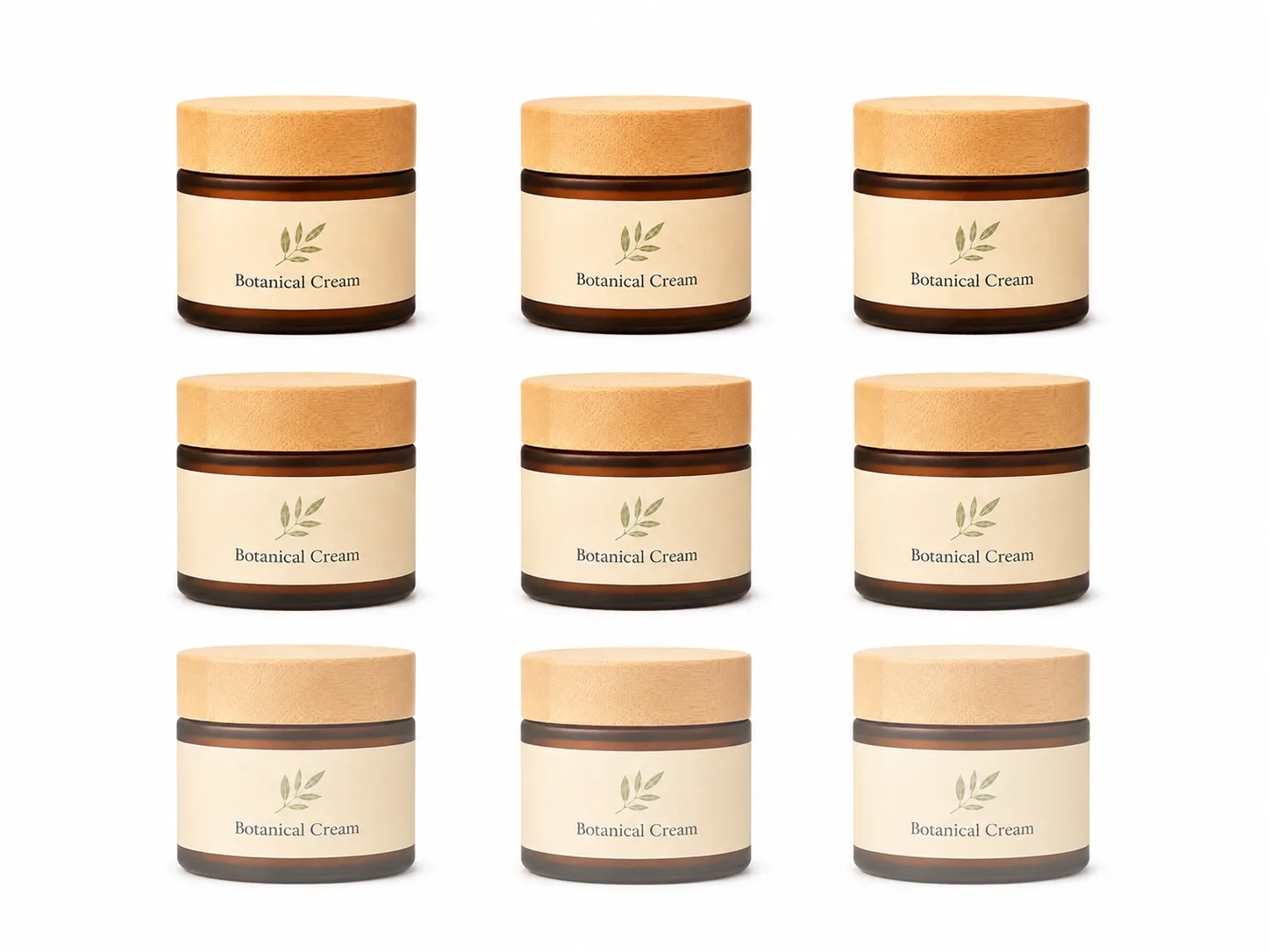
Marketplace update
Process listing images in batches instead of one at a time.
Have a catalog batch ready?
Upload 5–50 product photos and review the estimated Lift cost before you run.
Start a Bulk batchWhen not to use Bulk
Bulk is not always the right workflow. Single images and mixed creative jobs may be better handled separately.
Not every job should be a batch
Bulk is designed for catalog batches. If the images do not belong together, need different creative directions, or include only one photo, another workflow may be better.
Choose the right workflow
Use Bulk for
- 5–50 product photos
- Catalog cleanup
- Store refreshes
- Similar product image goals
- Batch review and selected downloads
Use regular Lift for
- One product photo
- Testing a new template
- A single hero image
- A one-off transparent cutout
- A custom creative result
Do not mix unrelated jobs
A batch should have one clear purpose. Do not mix Marketplace Ready, Transparent, lifestyle, and ad-style goals in the same batch unless the workflow explicitly supports it.
Related workflows
What happens during review
Bulk separates technical completion from user review, so users know what to expect.
Review happens before you finalize
Bulk gives you a review step so you can decide which results are ready. Keep the results that work, use Try again where needed, and download the selected images when the batch is ready.
What to expect
- If something does not complete properly on our end, the Lifts for that attempt are returned automatically.
- If a result completes but you want a different version, your first Try again is included before you finalize.
- Additional attempts after the included Try again may use more Lifts.
- Re-downloading a finalized image does not use additional Lifts.
- Completed results should be reviewed before publishing.
Technical issue vs. another look
Something does not complete
- The attempt does not produce a usable result.
- The Lifts for that attempt are returned automatically.
- The image can be tried again after the issue is resolved.
Result completes
- The image is available for review.
- You can keep it, leave it out, or use Try again.
- Your first Try again is included before you finalize.
Review before download
Bulk is meant to save time, not skip judgment. Check each final image before using it in a store, marketplace, or client catalog.
Common product photo mistakes
These are the mistakes that make marketplace images look unprofessional or get skipped.
Watch for these before publishing

Busy background
The buyer has to separate the product from the room, table, or clutter.

Bad lighting
Yellow, dim, or harsh light makes the product look worse.

Crooked product
Slight tilts can make packaging look careless.
Tiny product
Too much empty space makes the item hard to inspect.

Glare
Reflections on plastic, foil, or glass can hide important details.

Low resolution
Blurry or compressed images reduce trust.

Added graphics
Main images should not look like banner ads.

Inconsistent catalog
Products from the same brand should feel visually related. When each photo uses a different background, size, and angle, the catalog looks disorganized and less trustworthy.
Fix the biggest issue first
If you only have time for one improvement, fix the background and lighting. Those two changes usually create the biggest quality jump.
Bulk batch checklist
Before starting a Bulk batch, make sure the photos belong together and are ready for review.
- You have 5–50 product photos ready.
- The photos are part of the same catalog, collection, or update.
- Each product is clearly visible.
- Labels, packaging, and important details are readable enough to review.
- The products are not heavily blocked by props or hands.
- You have chosen the right workflow or template for the batch.
- You understand the estimated Lift cost before running.
- You have an approved reference look or are ready to create one.
- You plan to review each result before download.
- You only download the images you want to use.
Downloads
FAQ
How many photos can I process in Bulk?
Bulk is built for catalog batches of 5–50 product photos at a time.
Why does Bulk start at 5 photos?
Bulk is designed for catalog work: product groups, store launches, marketplace updates, and batch cleanup. For one product photo, use the regular Lift workflow.
What happens if I upload more than 50 photos?
Bulk supports up to 50 photos at a time. For larger catalogs, start a second batch for the remaining images.
What is reference-locked consistency?
Reference-locked consistency means you approve one visual direction first, then use that approved look to guide the rest of the batch.
Do I have to download every result?
No. Review the batch, keep the results you like, use Try again where needed, and download only the selected images.
How are Lifts used in Bulk?
Bulk shows a cost preview before the batch runs. The final Lift use depends on the number of photos, selected workflow, output size, completed attempts, and whether Premium is on — Premium bulk costs 2× the standard per-photo cost.
What happens if something does not complete properly?
If something does not complete properly on our end, the Lifts for that attempt are returned automatically. If a result completes but you want a different version, your first Try again is included before you finalize.
Is Bulk only for Amazon or Shopify?
No. Bulk can help with Amazon, Shopify, Etsy, Walmart, eBay, WooCommerce, agency catalogs, supplier photo cleanup, and store refreshes.
Related resources

Marketplace Ready Template Guide
Learn when to use RenderLift Marketplace Ready, how to prepare your source photo, what to review before downloading, and how to use it for Amazon, Shopify, Etsy, Walmart, eBay, and other ecommerce listings.
Read guide →
Transparent Background Guide
Learn when to use RenderLift Transparent, when to choose Just Transparent vs Transparent + Lift, how to prepare source photos, and where transparent product images work best.
Read guide →Amazon Product Photo Guide
Learn how to prepare Amazon product photos with clean backgrounds, strong lighting, proper sizing, and marketplace-ready presentation.
Read guide →Shopify Product Photo Guide
Learn how to prepare Shopify product photos for product pages, collection grids, mobile storefronts, hero sections, and fast-loading ecommerce stores.
Read guide →
How Lifts Work
Learn how RenderLift Lifts work, how many Lifts common product photo workflows use, what happens with Try again, downloads, Bulk batches, Transparent outputs, and technical issues.
Read guide →Clean up a catalog batch.
Upload 5–50 product photos, approve the look, review the results, and download the images that are ready.
Bulk is designed for catalog-style workflows. Sellers should review all final images before publishing.