Remove the background when your product needs to go anywhere.
Transparent creates clean product cutouts for banners, ads, store sections, emails, social graphics, and design layouts.


Transparent basics
What Transparent does
Transparent removes the background so the product can be placed into another design.
A transparent product image is a flexible asset
Transparent is for sellers, designers, and store owners who need the product separated from its original background. Once the background is removed, the product can be placed into banners, ads, social posts, homepage sections, emails, and custom layouts.
Transparent helps with
- Product cutouts
- Shopify banners
- Social graphics
- Email images
- Ad creatives
- Theme sections
- Custom design layouts
- Reusable product assets
Original photo vs. transparent cutout
Original photo
- Background is attached to the image
- Harder to place into designs
- May clash with banners or store sections
- Less flexible across channels
Transparent cutout
- Product can be placed anywhere
- Works on colored backgrounds
- Useful for design layouts
- Reusable across store, ads, and social
Think of it as a building block
Transparent is not always the final image. It is often the product asset you place into a larger design.
Just Transparent
Use Just Transparent when the product photo already looks good and you only need the background removed.
Remove the background only
Just Transparent is the simplest Transparent workflow. Use it when the product already looks clean, sharp, and well-lit, but the background needs to disappear.
Use Just Transparent when
- The product photo already looks good.
- The label, shape, and color are clear.
- Lighting is already acceptable.
- The product edge is visible.
- You only need a cutout.
- You plan to place the product into a design later.
Lift cost
- Just Transparent uses 1 Lift at any size.
- It is a background removal utility.
- It does not clean up the image first.
- It is best when the source photo is already strong.
Good fit for Just Transparent

Clean source photo
The product is already sharp and well lit.
Background removed
The product is cut out and ready to place into another design.
Just need the background gone?
Use Just Transparent when the product photo is already ready.
Try TransparentTransparent + Lift
Use Transparent + Lift when the product needs cleanup first, then a transparent cutout.
Clean up first, then remove the background
Transparent + Lift is for product photos that need improvement before becoming a cutout. It is useful when the image has weak lighting, distracting background problems, uneven presentation, or needs a cleaner product-first look.
Use Transparent + Lift when
- The product photo needs cleanup first.
- Lighting is weak or uneven.
- The background is distracting.
- The product needs a cleaner ecommerce look.
- You want a polished cutout, not just a raw cutout.
- You plan to use the image in a banner, ad, or storefront section.
Lift cost
- Transparent + Lift uses 2 Lifts for 1K or 2K outputs.
- Transparent + Lift uses 3 Lifts for 4K outputs.
- It combines image cleanup with background removal.
- Use it when the source photo is not already clean enough.
Transparent + Lift workflow
Upload the product photo.
Start with the clearest image you have.
Choose Transparent + Lift.
Use this when the product needs cleanup before the cutout.
Review the cleaned product.
Check label, color, shape, edge, and product detail.
Review the cutout.
Place it mentally on another background and check whether the edge still looks natural.
Download when ready.
Save the transparent result once it looks right.
Before and after cleanup

Needs cleanup
The product is usable, but lighting/background need improvement.

Clean transparent result
The product is cleaned and delivered as a cutout.
Need cleanup before the cutout?
Use Transparent + Lift when the original photo is not ready yet.
Try Transparent + LiftTransparent vs. white background
Transparent and white-background images solve different ecommerce problems.
A cutout is not the same as a listing image
Transparent images are flexible assets. White-background images are finished ecommerce images. Pick the format based on where the image will be used.
Which one should you use?
White background
- Marketplace-style main images
- Product pages
- Collection grids
- Clean ecommerce listings
- Finished image for publishing
Transparent
- Shopify banners
- Social ads
- Email graphics
- Homepage sections
- Custom design layouts
Same product, different use

White background
Better when the image needs to be a finished product listing photo.

Transparent cutout
Better when the product needs to be placed into another layout.
Do not upload a transparent cutout everywhere
Some platforms and page sections expect a finished background. A transparent product cutout may need to be placed onto white, neutral, or branded background before publishing.
When to use Transparent
Transparent is best when the product needs to be placed into another design or reused across multiple channels.
Use Transparent when the background is getting in the way
If the product needs to appear on a banner, colored background, social post, ad, email, or store design section, a transparent cutout gives you flexibility.
Transparent is a good fit when
- You need a product cutout.
- You are building a Shopify banner.
- You are creating social graphics.
- You want the product on a colored background.
- You are making email images.
- You need product art for a landing page.
- You are preparing reusable design assets.
- You need a clean product layer for Canva, Figma, Photoshop, or similar tools.
Common Transparent use cases
Store banner
Place the product on a branded background with space for copy.

Social graphic
Use the product cutout in a square or vertical social layout.

Email campaign
Place the product into a clean promotional email design.
Create a reusable product cutout
Use Transparent when your product needs to move across designs.
Try TransparentWhen not to use Transparent
Transparent is not always the right final image format.
Not every product image should be transparent
Transparent is powerful, but it is not always the final answer. Some use cases need a finished white-background product photo, a marketplace-ready listing image, or a branded lifestyle scene.
Choose another template when
Use Marketplace Ready for
- Main listing images
- Product pages
- Store catalog grids
- Clean white or neutral ecommerce images
Use Luxury Studio or Scene for
- Premium brand visuals
- Lifestyle-style images
- Homepage visuals
- Social storytelling
Use Transparent for
- Cutouts
- Ads
- Banners
- Design placements
- Product layers
Transparent does not replace review
A cutout can still have edge issues, missing details, or awkward placement. Always review the final image before using it in a design.
Related templates
How to prepare a source photo for Transparent
Transparent works best when the product edge is visible and the source photo is sharp.
Cutouts need clean product edges
Background removal depends heavily on the source photo. If the product edge is blurry, blocked, overexposed, or hidden in shadows, the cutout may be harder to review.
Before you upload
Keep the full product visible.
Do not cut off corners, lids, handles, straps, labels, or packaging edges.
Avoid heavy glare.
Strong reflections can hide the product edge or label.
Use enough contrast.
The product should be visually separable from the background.
Shoot sharp.
A blurry source photo often creates a weaker cutout.
Remove distracting props.
Props touching the product can confuse the cutout edge.
Source photo do / don’t
Do
- Use a sharp product photo.
- Keep the product fully visible.
- Use soft even lighting.
- Make sure edges are easy to see.
- Use a simple background when possible.
Don't
- Hide the edge behind props.
- Use a blurry screenshot.
- Shoot with strong glare.
- Crop off important product parts.
- Use a background with a similar color to the product edge.
Source photo problems
Good source
Product is sharp, visible, and easy to cut out.

Bad source
Product edge is blocked, blurry, or hard to separate.
RenderLift tip
If the cutout edge keeps missing, retake the product photo with better lighting, more contrast, and fewer props touching the product.
What to review before downloading a transparent image
Check the product edge and transparency before using the cutout in a design.
Transparent images need edge review
A transparent cutout can look good on white but show problems when placed on a dark, colored, or patterned background. Review the edge before downloading.
Review these details
- Product edge
- Missing parts
- Rough halos
- Transparent background
- Label readability
- Color accuracy
- Shape accuracy
- Thin edges like handles, lids, cords, or straps
- Glass or reflective areas
- How it looks on light and dark backgrounds
What to inspect

Edge quality
Look for rough outlines, halos, or missing product details.
Background transparency
Make sure the removed background is transparent, not white or gray.
Design placement
Test the cutout on the type of background where it will actually be used.
Test it where it will live
A transparent cutout should be reviewed on the kind of background you plan to use, not only on the preview screen.
Where transparent product images work well
Transparent cutouts are useful wherever the product needs to be placed into a designed layout.
Transparent images are made for design placement
Once the background is removed, the product becomes a flexible asset that can move across store sections, social graphics, emails, banners, landing pages, and ad creatives.
Common use cases
Shopify banners
Place the product on a branded hero or promotion section.
Social ads
Use the product cutout in square, vertical, or story-style ads.
Email campaigns
Add product cutouts to promotional or launch emails.

Landing pages
Place the product into a custom page design without the original background.

Marketplace secondary images
Use transparent assets to create comparison or feature images where allowed.

Design tools
Bring the cutout into Canva, Figma, Photoshop, or other design workflows.
Check platform rules
Transparent cutouts can be useful for secondary images and designs, but marketplace rules vary. Always review current platform and category requirements before publishing.
How Transparent uses Lifts
Transparent pricing is based on whether you only remove the background or clean up the image first.
Two workflows, two pricing rules
Transparent has two modes. Just Transparent removes the background only. Transparent + Lift cleans up the product image first, then removes the background.
Transparent Lift pricing
Just Transparent
- Background removal only
- Best when the photo already looks good
- 1 Lift at any size
- Simple cutout workflow
Transparent + Lift
- Cleans up the image first
- Then removes the background
- 2 Lifts for 1K or 2K
- 3 Lifts for 4K
What to expect
- If something does not complete properly, the Lifts for that attempt are returned automatically.
- If a result completes but you want a different version, your first Try again is included before you finalize.
- Additional attempts after the included Try again may use more Lifts.
- Re-downloading a finalized image does not use additional Lifts.
Choose the lowest workflow that solves the job
If your product photo already looks good, use Just Transparent. If the photo needs cleanup first, use Transparent + Lift.
Common product photo mistakes
These are the mistakes that make marketplace images look unprofessional or get skipped.
Watch for these before publishing

Busy background
The buyer has to separate the product from the room, table, or clutter.

Bad lighting
Yellow, dim, or harsh light makes the product look worse.

Crooked product
Slight tilts can make packaging look careless.
Tiny product
Too much empty space makes the item hard to inspect.

Glare
Reflections on plastic, foil, or glass can hide important details.

Low resolution
Blurry or compressed images reduce trust.

Added graphics
Main images should not look like banner ads.
Inconsistent catalog
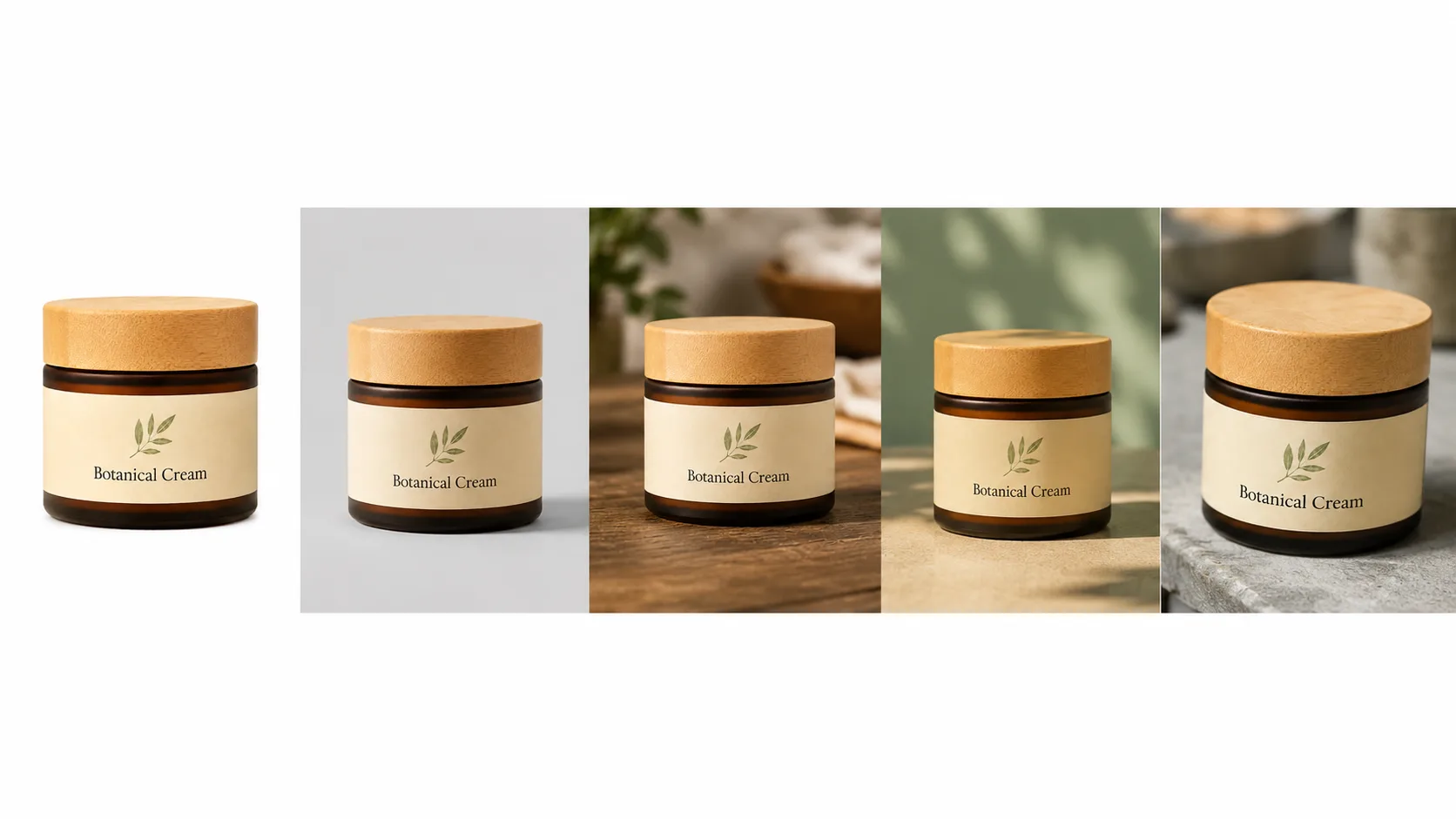
Products from the same brand should feel visually related. When each photo uses a different background, size, and angle, the catalog looks disorganized and less trustworthy.
Fix the biggest issue first
If you only have time for one improvement, fix the background and lighting. Those two changes usually create the biggest quality jump.
When to use Try again
Try again creates a fresh attempt when the first result is close but not quite right.
Use Try again when the result is close
Sometimes the first result is almost right but needs another attempt. Try again is useful when the product is recognizable, but the crop, lighting, background, or edge detail needs another pass.
Try again when
- The product is mostly correct.
- The crop is close but not ideal.
- The background needs another attempt.
- The shadow feels distracting.
- The edge needs a cleaner version.
- The overall result is good but not the one you want to download.
Retake the photo when the source is the problem
If the original image is blurry, heavily glared, blocked by props, or missing product details, a new source photo may work better than repeated attempts.
Download only when ready
Review the final image before downloading. Once you have the version you want, save it and use it in your store or marketplace.
Transparent image checklist
Before downloading a transparent result, review these items.
- The product edge is clean.
- No important part of the product is missing.
- The label, shape, color, and packaging still look faithful to the source photo.
- There are no rough halos around the product.
- Transparent areas are actually transparent, not gray or white.
- Reflections, glass, handles, lids, and thin edges still look natural.
- The product will still look good when placed on a colored or designed background.
- The source photo was sharp enough to preserve detail.
- The result matches the intended use: design asset, ad, banner, theme section, or social post.
- You reviewed the result before publishing.
Downloads
FAQ
What is Transparent best for?
Transparent is best for creating product cutouts that can be placed into banners, ads, social graphics, store sections, emails, and custom designs.
What is Just Transparent?
Just Transparent removes the background only. Use it when your product photo already looks good and you only need a clean cutout.
What is Transparent + Lift?
Transparent + Lift first cleans up the product image, then removes the background. Use it when the product photo needs lighting, background, or presentation improvement before becoming a cutout.
How many Lifts does Transparent cost?
Just Transparent is 1 Lift at any size. Transparent + Lift is 2 Lifts for 1K or 2K outputs, and 3 Lifts for 4K outputs.
Should I use Transparent or Marketplace Ready?
Use Marketplace Ready when you want a finished ecommerce listing-style image. Use Transparent when you need a product cutout that will be placed into another design.
Can I use Transparent for Amazon main images?
A transparent cutout is usually not the final format for a marketplace main image. For Amazon-style main images, a clean white background is usually safer. Use Transparent when you need flexible design assets.
What source photo works best for Transparent?
Use a sharp, well-lit photo where the full product is visible and the edge is not blocked by props, glare, shadows, or clutter.
What happens if a render fails, or I do not like the result?
If a render does not complete properly on our end, the Lifts for that attempt are returned automatically. If the result completes but you want a different version, your first Try again is included before you finalize.
Related resources
Marketplace Ready Template Guide
Learn when to use RenderLift Marketplace Ready, how to prepare your source photo, what to review before downloading, and how to use it for Amazon, Shopify, Etsy, Walmart, eBay, and other ecommerce listings.
Read guide →
Shopify Product Photo Guide
Learn how to prepare Shopify product photos for product pages, collection grids, mobile storefronts, hero sections, and fast-loading ecommerce stores.
Read guide →
Amazon Product Photo Guide
Learn how to prepare Amazon product photos with clean backgrounds, strong lighting, proper sizing, and marketplace-ready presentation.
Read guide →
Bulk Product Photo Workflow
Learn how RenderLift Bulk helps sellers clean up 5–50 product photos at a time with reference-locked consistency, review controls, Try again, Lift previews, and selected downloads.
Read guide →
How Lifts Work
Learn how RenderLift Lifts work, how many Lifts common product photo workflows use, what happens with Try again, downloads, Bulk batches, Transparent outputs, and technical issues.
Read guide →Create a clean product cutout.
Upload a product photo, choose Transparent, review the edge, and download when it looks right.
Transparent cutouts are flexible design assets. Platform requirements vary, so sellers should review the final image before publishing.